

How to Convert Images with Tabular Data into Excel for Easy Analysis
Some people receive invoices, receipts, or survey forms as images or scanned documents. The data inside them is in table form. To analyze it, they type everything manually into Excel. That takes a lot of time. And the chances of errors are high too.
According to DocuClipper, humans make up to 100 times more data entry errors compared to automated systems. That itself is a good enough reason to stop typing data manually and start converting those images directly into Excel.
In this blog, we will walk you through a simple guide on how to convert images containing tabular data into Excel for easy analysis.
What Does It Mean to Convert an Image Table into Excel?
When you have a table inside an image or scanned document, you cannot do anything with that data. You cannot sort it or run formulas on it. Converting it into Excel means taking that static table and turning it into editable rows and columns.
Tabular data is found in many types of documents. Invoices have tables of item names, amounts, and prices. Results of surveys are in rows of responses. Financial reports have numbers in nice grids. Inventory sheets specify products and their counts. Academic transcripts display student grades in tables. All these are typical examples of tabular data within images that people want to analyze.
How Excel Structures Data for Analysis
Once the data is in Excel, it becomes a lot easier to work with. Each row has one record, and each column defines a field. The data can be sorted and filtered. You can order it any way you want. You can also make formulas in the cells themselves. If you want a sum, an average, or a comparison, you can do it within seconds.
How to Convert Images Containing Tabular Data into Excel
Converting an image to Excel manually takes a lot of effort and time. We will discuss an easy method using an image to excel converter tool. You can do this tough task quickly and easily with the help of this tool.
1) Optimize the Images
Low resolution images are tough to work with. The tool cannot read the text clearly, and the accuracy gets compromised. So before you do anything, optimize the image first.
If the image has extra parts around the table, crop them out. Keep only the table in the frame. Then check the brightness. If the image is too dark or too light, adjust it. Tools like Canva let you do basic image editing without any technical skills.
Also, make sure the table lines and text are clearly visible. If the image is distorted or tilted, try to get a better version of it. A clear and clean image gives much more accurate results when you convert it.
2) Choose an Efficient Tool
The tool you choose makes a big difference. Some tools give inaccurate results. They miss columns, merge rows, or skip data entirely. That means you still have to fix everything manually. A good tool should be fast and accurate. It should correctly detect the table structure and place the data in the right rows and columns.
Batch conversion is also important. If you have multiple images, you should be able to convert them all at once instead of doing them one by one. The tool should also be easy to use. You should not need technical knowledge to run it.
Another thing to look at is privacy. This is a problem if you have sensitive financial or personal data in your photos. Always use a tool that uses secure data-handling practices and has a clear privacy policy.
We tested multiple tools and most of them had accuracy issues or missing features. One tool that stood out was Image to Excel by Imagetotext.info. We found it accurate during our testing. It also has a clear privacy policy. We will use it here for the demo.
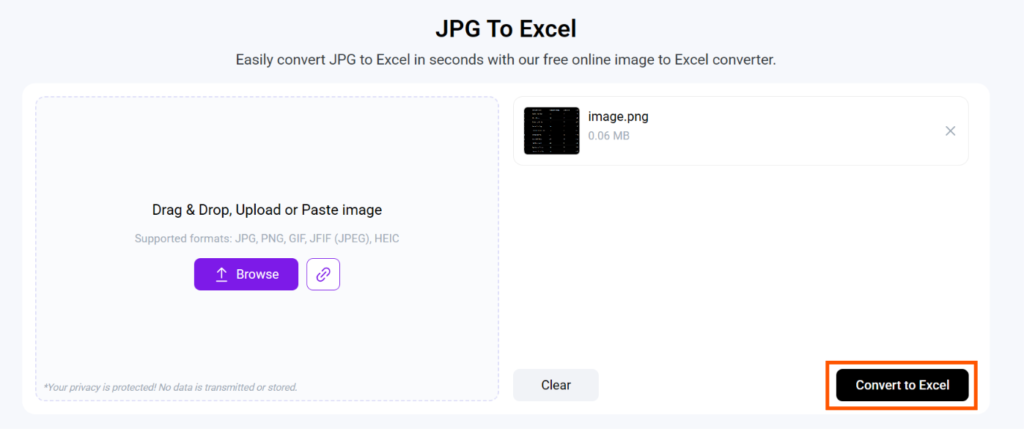
3) Convert Images to Excel Using the Tool
Almost all image to excel converters available online follow a similar working process. For the tool we selected, you can upload your images using multiple methods.
- You can upload images by clicking on the “Browse” button and selecting from the device.
- You can directly drag and drop images into the specified box
- If the image is present online, you can simply paste the URL to that image
- You can paste the screenshot from your clipboard into the tool
After uploading your image, click on the “Convert to Excel” button. The tool will start extracting data from your image and will provide you with the Excel spreadsheet in a while.
After that, you can copy the text directly and paste it into an Excel sheet. Or you can download an .xlsx file by clicking on the “Download” button.
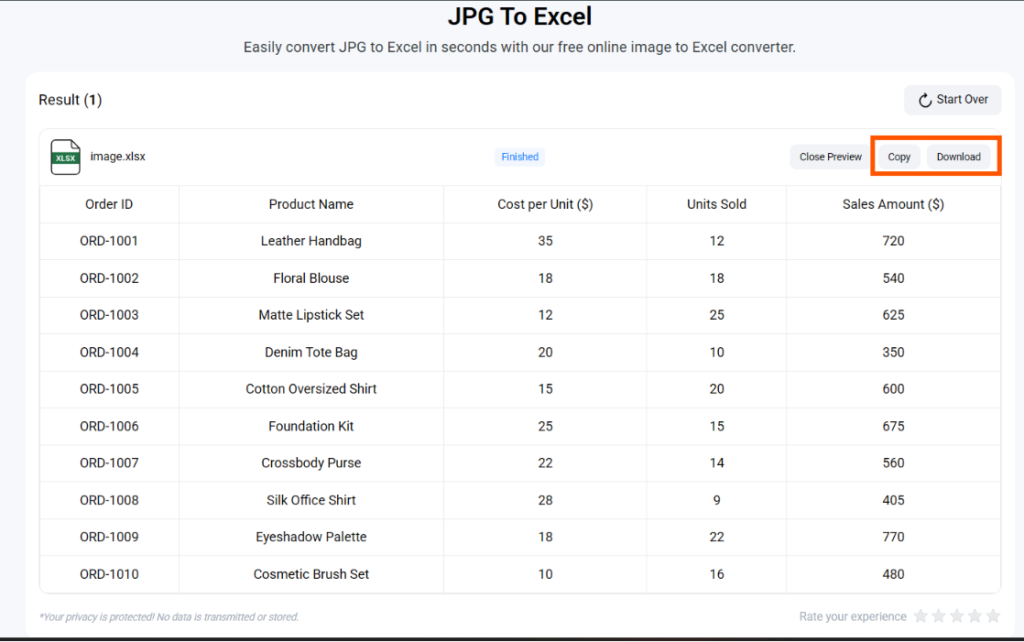
4) Cross-check and Verify
Once the conversion is done, do not just copy the data and use it. Take a few minutes to cross-check it first. Compare the Excel output with the original image. Make sure all the rows and columns are in the right place.
In many cases, tools miss a value or put it in the wrong cell. Numbers are especially tricky. A tool may read “8” as “6” or skip a decimal point. That kind of error can cause big problems if you are working with financial data or inventory sheets.
Go through the table row by row. Check if the figures match. If something looks off, fix it manually. It does not take long. But it saves you from using wrong data in your analysis.
Frequently Asked Questions
How Accurate Is OCR When Extracting Tabular Data?
It depends on the tool and the OCR engine it uses. The tool we tested delivered accurate results for clear, high-quality images. However, the OCR accuracy can vary based on image quality and table complexity.
What Image Formats Work Best for Table Extraction?
It depends on the tool you are using. The tool we used supports multiple image formats, so you are not limited to one type.
Is It Safe to Use Online Tools to Extract Business Document Data?
Not all tools are safe. Always check the privacy policy of the tool before uploading any sensitive business documents.
Can I Convert Multiple Images to Excel at Once?
Some tools support batch conversion, and some do not. Check if the tool you are using has this feature before you start.
Do I Need Any Technical Skills to Convert Image Tables Into Excel?
No. Most online tools are simple to use. You just upload the image, run the conversion, and download the Excel file.
What Should I Do If the Converted Data Has Errors?
Cross-check the output with the original image manually. Fix any incorrect values before you use the data for analysis. If you find major inconsistencies, you may reprocess the image. This way, the issues get solved mostly.
Final Words
Converting image tables to Excel is not that complicated. All you need is a clear image and a good tool. Optimize the image before uploading it to the tool. Select an accurate tool that keeps your data private. Cross-check the output after conversion is complete before you use it.
Manual data entry from images takes time and creates more errors. This method is faster and more accurate. Try it once, and you will never go back to manually typing data.
