

Best SEO tool to use in 2026: SEMrush explained
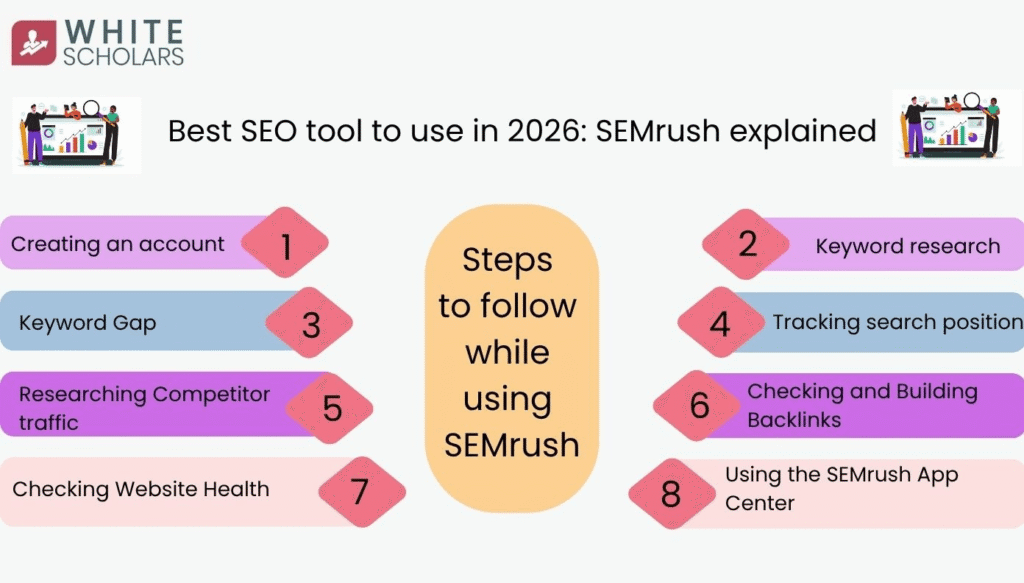
Let’s decode SEMrush, the best SEO tool to use in 2026, into 8 different steps which can help in mastering the tool from scratch.
What is SEO ranking?
SEO ranking is the position a website holds on search engine results pages like Google when people search for specific words.
A higher ranking means the website appears closer to the top, which helps it get more natural visitors without paying for advertisements.
8 Steps to Follow
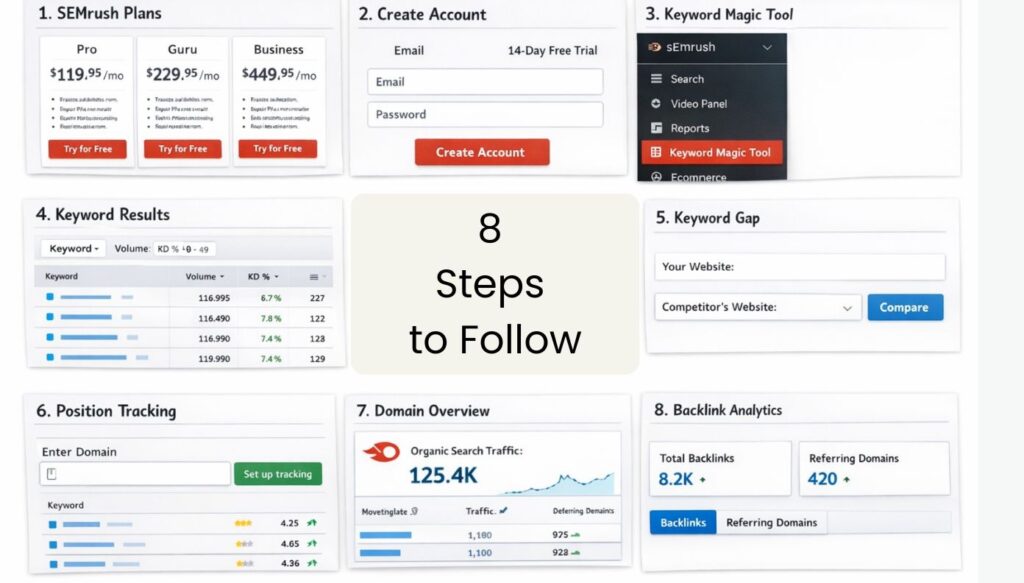
1: The SEMrush landing page shows different subscription plans like Pro, Guru, and Business with “Try for Free” buttons.
2: An account creation window with boxes for email and password.
3: The SEMrush sidebar menu with a red box highlighting the “Keyword Magic Tool”
4: A list of many keywords with columns showing search numbers and a “KD %” score.
5: The “Keyword Gap” tool page with boxes to enter two different website addresses.
6: The “Position Tracking” setup screen asking for a domain name.
7: A ranking report showing a list of words and their current position numbers on Google.
8: The “Domain Overview” page showing a big number for “Organic Search Traffic”.
Let us understand in detail how to execute each and every step.
Step 1: Setting Up the SEMrush Account
To begin using the tool, navigate to the official website using a promotional link to access a 14-day free trial.
On the plans page, select the Pro Plan by clicking the Try for Free button. Create an account by entering a username and a password, then click the Create Account button.
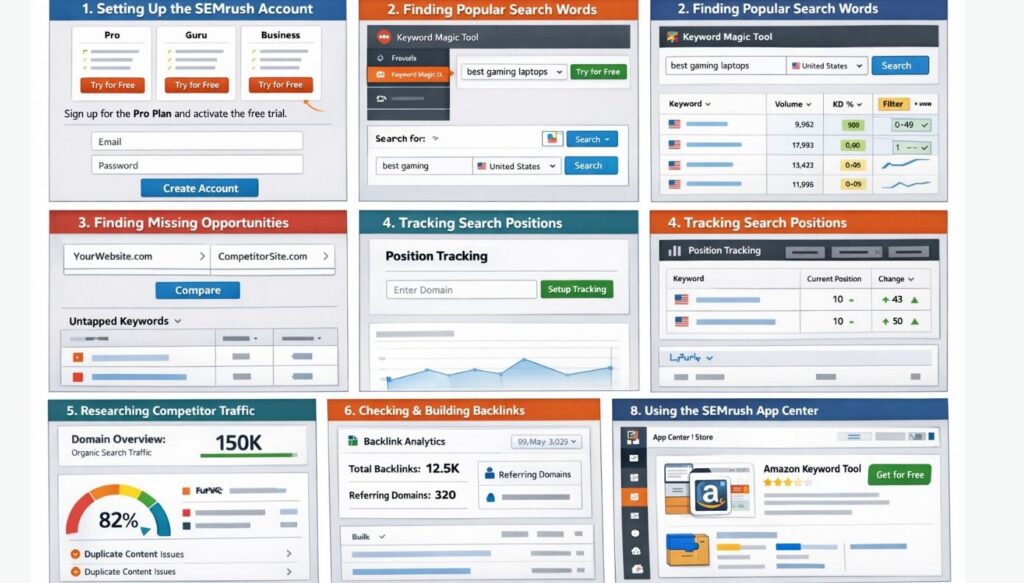
To activate the trial, enter payment card details and click Place Order. This allows for 14 days of use without an upfront cost. Once the account is ready, click Start using SEMrush to open the main dashboard.
Step 2: Finding Popular Search Words (Keyword Research)
Finding the right words that people type into Google is the first step to getting more traffic. This is done through the Keyword Magic Tool.
- Go to the dashboard and select Keyword Magic Tool from the side menu.
- Enter a main topic in the search box, such as “best gaming laptops”.
- Select the target country, like the United States, and click Search.
The results show a list of related words. Look at the volume column to see how many people search for that word every month.
The KD (Keyword Difficulty) column shows how hard it is to rank for that word. To find easier words, use the Filter option. Set the difficulty from 0 to 49 and click Apply. This shows words that are easier to win a high spot for.
Clicking on a specific keyword provides more details, including:
- Global Volume: How many people search for it worldwide.
- Questions: Common questions people ask about that topic.
- Intent: This explains why the person is searching.
- Informational: The person wants an answer to a question.
- Navigational: The person wants to find a specific page.
- Commercial: The person wants to research a product.
- Transactional: The person wants to buy something.
To see who is currently winning the top spots, scroll down to see the Top 100 Google results. Click on a competitor’s link to see their page and get ideas for new content.
Step 3: Finding Missing Opportunities (Keyword Gap)
The Keyword Gap tool helps find words that competitors rank for but the user’s website does not.
- Select Keyword Gap from the dashboard.
- Enter the website’s own link in the first box.
- Enter a competitor’s link in the second box. To find a competitor, search for the main topic on Google and copy the links of the top results.
- Up to three or more competitors can be added.
- Select the target country and click Compare.
Scroll down to the Untapped tab. This list shows the keywords where the competitor has a ranking, but the user’s site has none. This information can be used to create new content that targets those specific words.
Step 4: Tracking Search Positions
The position tracking tool monitors where a website ranks on Google every day.
- Go to the dashboard and select Position Tracking.
- Enter the website domain name and click Setup tracking.
- Choose the location to track, such as a specific country or city, and click Continue to keywords.
- Add keywords to track by typing them manually or clicking Import from similar suggestions. This option automatically finds words the site is already near the top for.
- Click Keywords to campaign and then Start tracking.
The tool will now send a weekly email report showing if the rankings went up or down. In the Overview section, the current position for each word is displayed. Clicking the icon next to a keyword shows exactly how the site appears on the SERP (Search Engine Results Page).
Step 5: Researching Competitor Traffic
Competitive research reveals where other websites get their visitors.
- Select Domain Overview from the dashboard.
- Type in a competitor’s domain name and click Search.
- Scroll down to see the keywords that bring them the most visitors.
- Go to Traffic Analytics to see how many people visit them per month and which specific pages are the most popular.
Creating content similar to their top-performing pages increases the chance of ranking well.
Step 6: Checking and Building Backlinks
Backlinks are links from other websites that point to a specific page. Google views content as more important if many high-quality sites link to it.
- Select Backlink Analytics.
- Enter a competitor’s URL and click ‘Analyse’.
- Click the Backlinks tab to see a list of every site linking to them.
- Look at Referring Domains to see how many unique websites provide these links.
To find the best links to copy, use the Active and Follow filters. This shows links that are currently working and pass value to the site. Click on the link provided to see the page where the backlink is located.
If a competitor has a backlink from a blog, check if that blog has a “Write for us” or “Guest posting” page. Following the guidelines on those pages allows a user to post their own article with a link back to their site.
If no guest post option exists, the website owner can be reached through a Contact Form to ask for a link or a partnership.
Step 7: Checking Website Health (Site Audit)
The site audit tool finds technical problems on a website that might stop it from ranking well.
- Select Site Audit from the dashboard.
- Enter the website domain and click Start Audit.
- The tool provides a Site Health Score.
- Review the errors (high priority) and warnings (medium priority).
Common issues include duplicate content, where the same text appears on multiple pages.
Click on any error to see which pages are affected and read the instructions on how to fix the problem. Fixing these errors helps the website perform better on search engines.
Step 8: Using the SEMrush App Center
The app centre contains extra tools for specific tasks like YouTube or e-commerce.
- Click on the App Center icon in the sidebar.
- Go to the Store to see available apps.
- For those selling on Amazon, search for the Instant Keyword Research for Amazon app.
- Click ‘Get for free’, enter a product name like ‘t-shirts’, and click ‘Proceed’.
- The app shows the top products and the keywords they use to rank.
- Clicking the variation icon shows different versions of those keywords with high search numbers.
These specialised tools help improve rankings across different platforms beyond just standard Google search.
To explore more about the tool and work on real-time data, join the best digital marketing course powered by AI in Hyderabad from WhiteScholars.
Conclusion
SEMrush is a comprehensive SEO tool that helps websites improve their Google rankings and gain organic traffic through data-driven research.
It allows users to find high-value keywords, uncover competitor strategies through keyword gap analysis, and monitor daily ranking changes automatically.
Beyond research, the tool provides insights into building high-quality backlinks and performing technical site audits to fix performance-hindering issues. errors.
By integrating these features, SEMrush provides a clear roadmap for optimising content and outperforming competitors.
Frequently Asked Questions
1. What is the benefit of using the Keyword Magic Tool?
The Keyword Magic Tool provides a complete list of frequently searched terms related to your topic, showing their monthly volume and difficulty (KD %). This allows you to target specific words that are easier to rank for, helping you create content that reaches your target audience.
2. How does the Keyword Gap feature work?
This feature compares your website directly with your competitors to find the top keywords they rank for that you currently do not. By identifying these “untapped” keywords, you can create new content to capture that missing traffic and stay competitive in your niche.
3. Why should I use the position tracking tool?
Position Tracking automatically monitors your website’s daily ranking for specific keywords and sends weekly reports via email. This saves time by removing the need for manual checks and alerts you immediately if your search engine visibility changes.
4. What are backlinks and why are they important?
Backlinks are links from other websites to your content, which Google uses to determine the quality and authority of your site. Having more backlinks from high-quality sites significantly improves your chances of ranking better on search engine result pages.
5. How does a site audit help with SEO?
A site audit analyses your website’s health, identifying technical issues like duplicate content and providing step-by-step solutions to fix them. Resolving these errors is essential for boosting your site’s SEO and ensuring it functions correctly for search engines.
